
Build pages that look designed
Learn to make landing pages
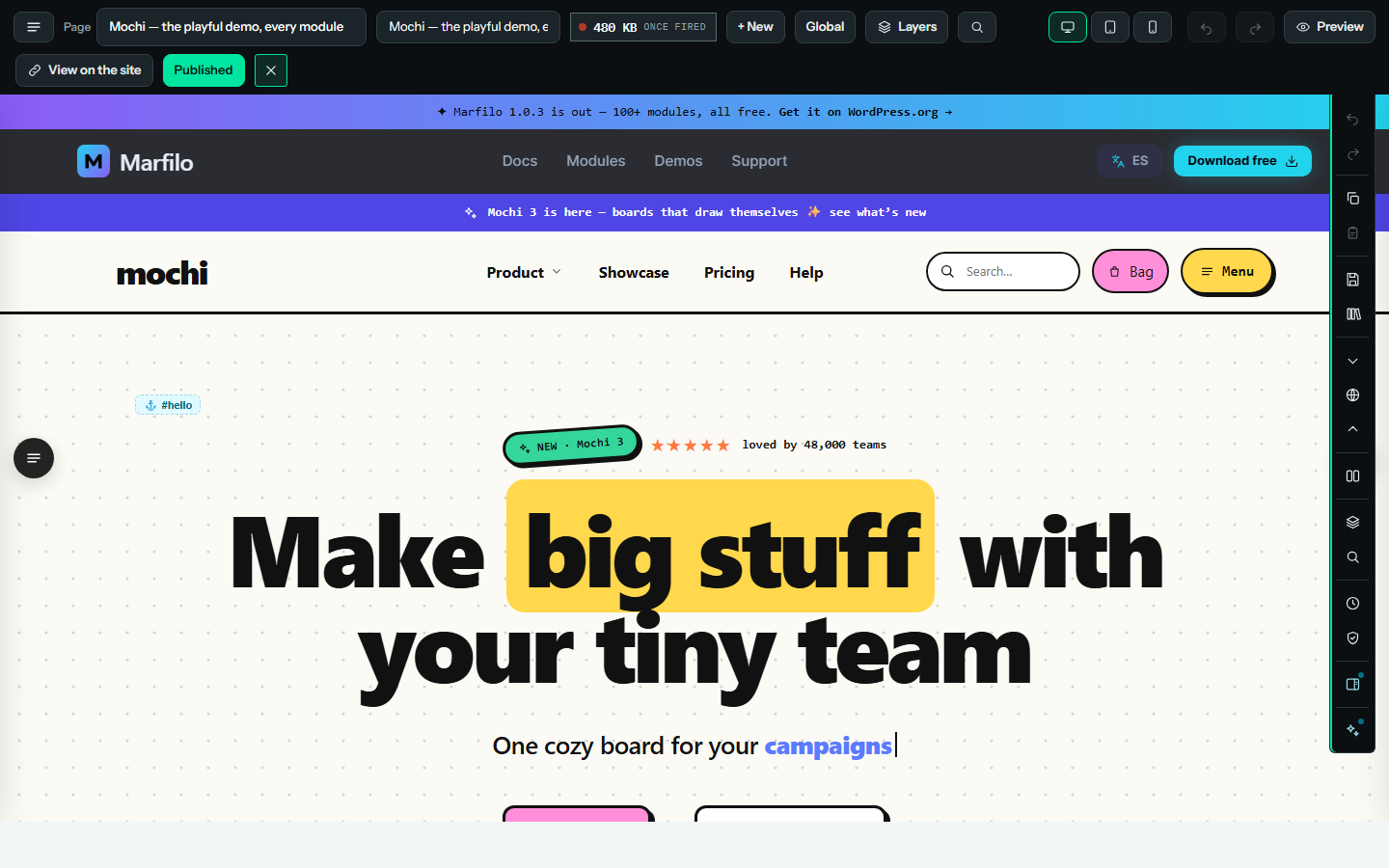
The complete guide to Marfilo: the editor, every setting, the global header and footer, templates, dynamic content and moving whole sites — with screenshots of the real thing.
modules
column layouts
site themes
undo steps
// 01 — How it works
One canvas for every part of the site
Everything you design is a document — a page, the header, the footer, a sidebar, a mega menu or a template for every post. You build it on the real page and publish it as finished HTML.
Up and running in four steps
Install
Plugins → Add New, search “Marfilo”, install and activate.
Open the builder
Marfilo → Builder, or “Edit with Marfilo” on any page.
Design
Start from a template or an empty section and drag modules in.
Publish
Check tablet and mobile, then press Publish.
// 02 — The editor
Everything within reach
A top bar for the document, a dock of page tools on the right, and the canvas in between.
The top bar, left to right
- Copy the page · Paste — Move every section to another page; one Ctrl+Z undoes it
- Save to the library — Keep the page to load it anywhere
- Library — Page templates, themes, your pages and blocks
- Export · Import — This page (.json, or .zip with its images) or the whole site (.zip)
- Content width — Narrow 960 · Normal 1120 · Wide 1280 · Extra wide 1440 · Full screen
- Floating elements — Pop-ups, age gate, dot navigation, fixed buttons
- Ctrl/⌘ + S — Publish
- Ctrl/⌘ + Z · Shift + Z — Undo · Redo
- Ctrl/⌘ + D — Duplicate the selection
- Ctrl/⌘ + F — Find and replace
- Delete — Remove the selection
- Esc · ? — Deselect or close · Show the shortcuts
- Clean firing — Up to 70 KB: a light page
- Warm — Up to 150 KB
- Hot — Up to 280 KB
- Overfired — More than that: look for heavy images or modules
// 03 — Build a page
Sections, rows, columns, modules
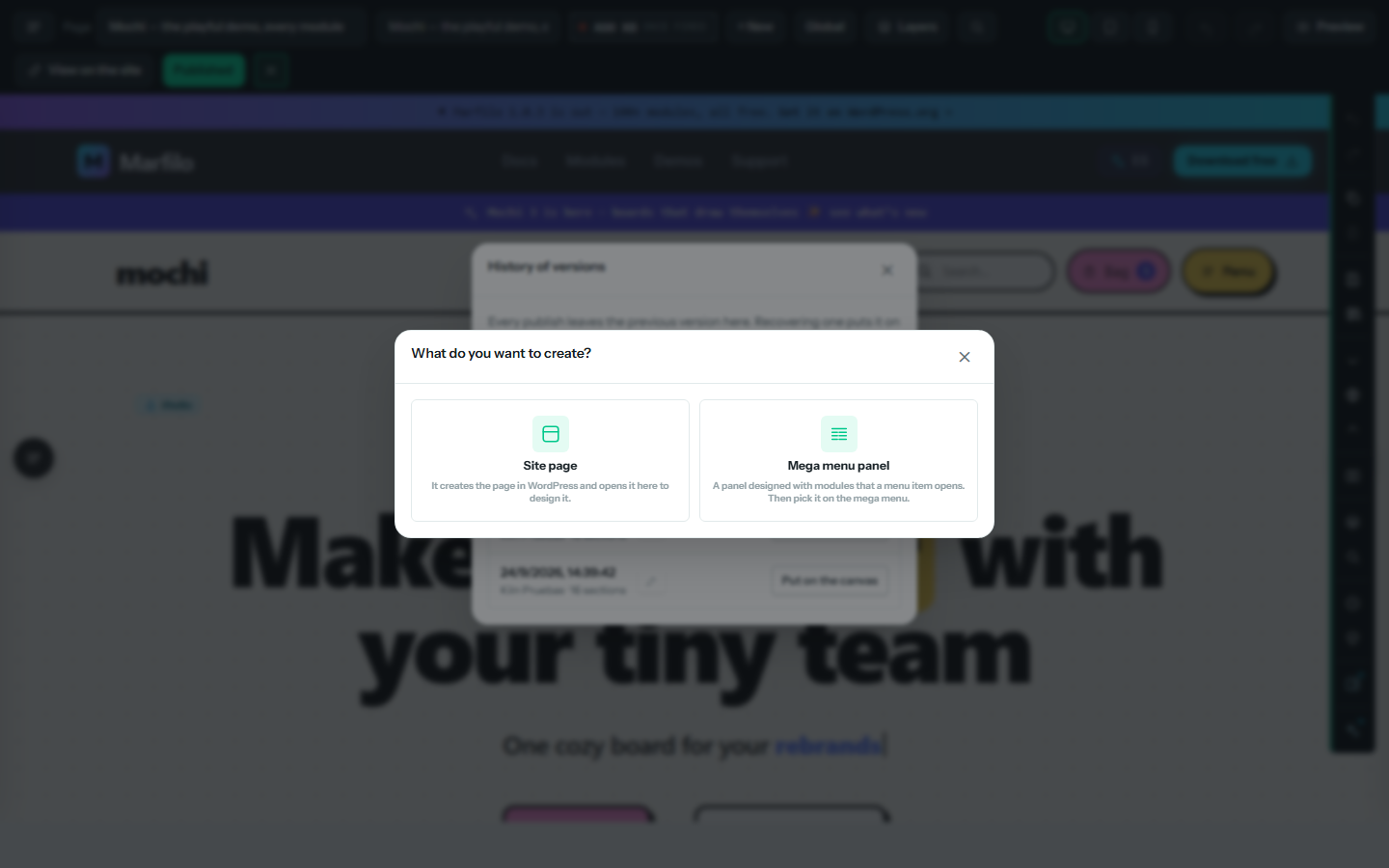
Four levels, and a “+” between every block. Rows split into columns out of 12; modules go inside columns.
Section
A band of the page: contained, full width or full bleed, with dividers and background video.
Row
“▦ Columns” offers 21 layouts; equal heights and reversed order on mobile.
Column
A width out of 12 and a vertical alignment.
Module
Title, image, gallery… The Container module nests modules in a row or a column.
// 04 — Module settings
Five zones, every detail
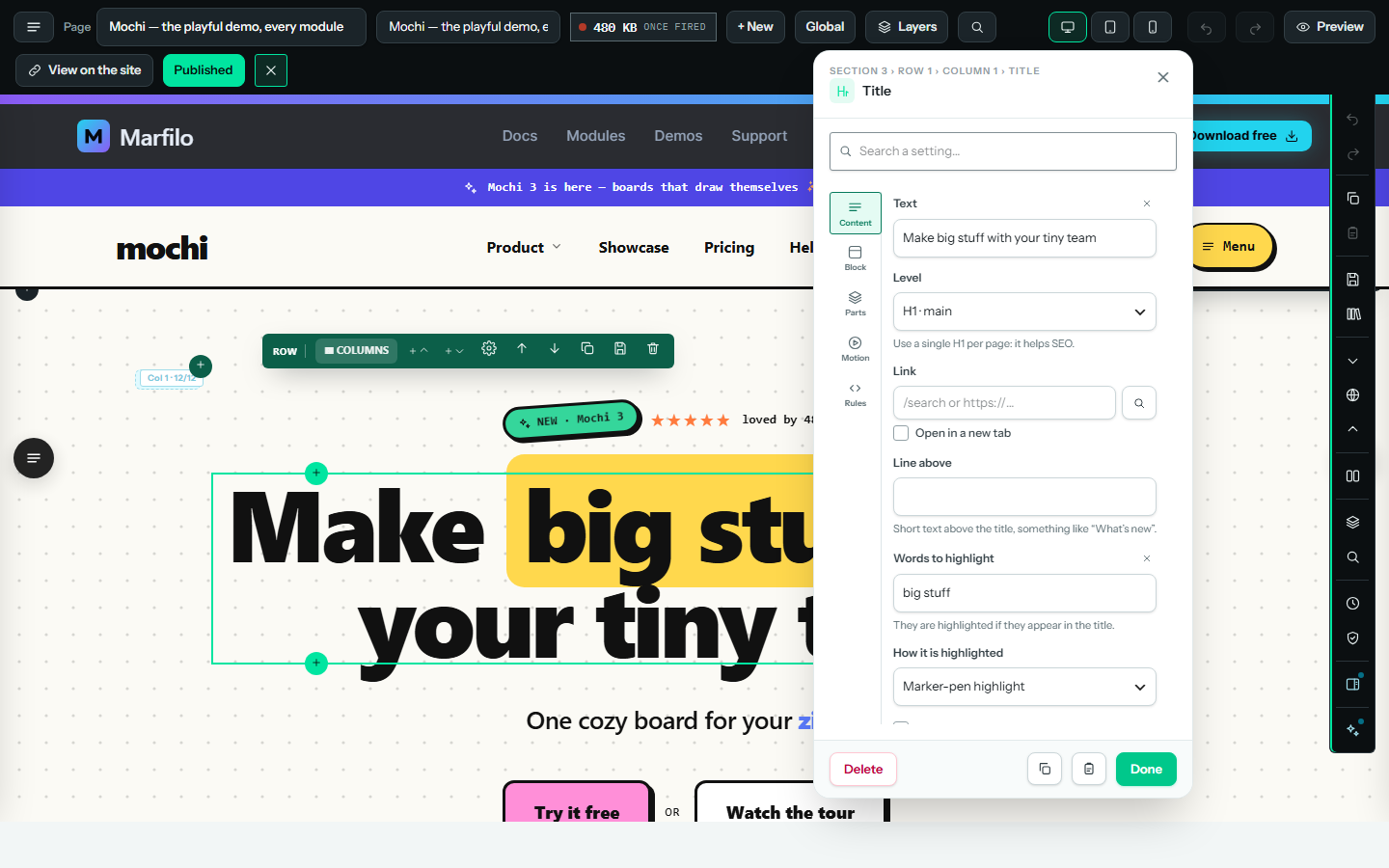
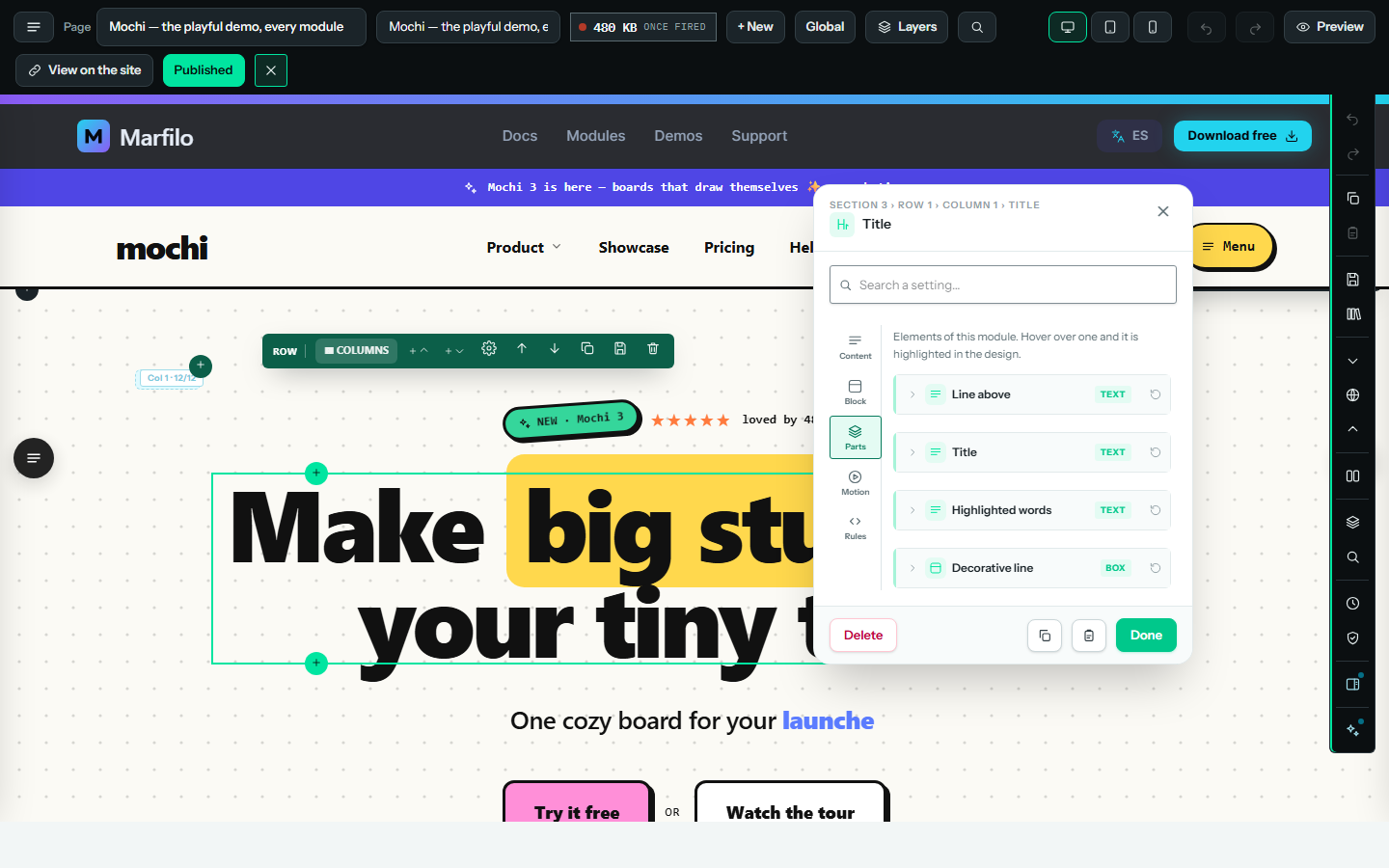
Select a module and click Settings. The panel has a search box and a rail of zones — only the ones that apply appear.
Content — what it says
Block — the container
Parts — each piece on its own
Motion — how it enters and reacts
Rules — when it shows
Tablet, mobile and hover
Style each screen
Three device icons pick the screen you are styling — the canvas follows — and ✦ hover styles the state under the mouse. Empty values are inherited: tablet from desktop, mobile from tablet.
// 05 — Global elements
Made once, used everywhere
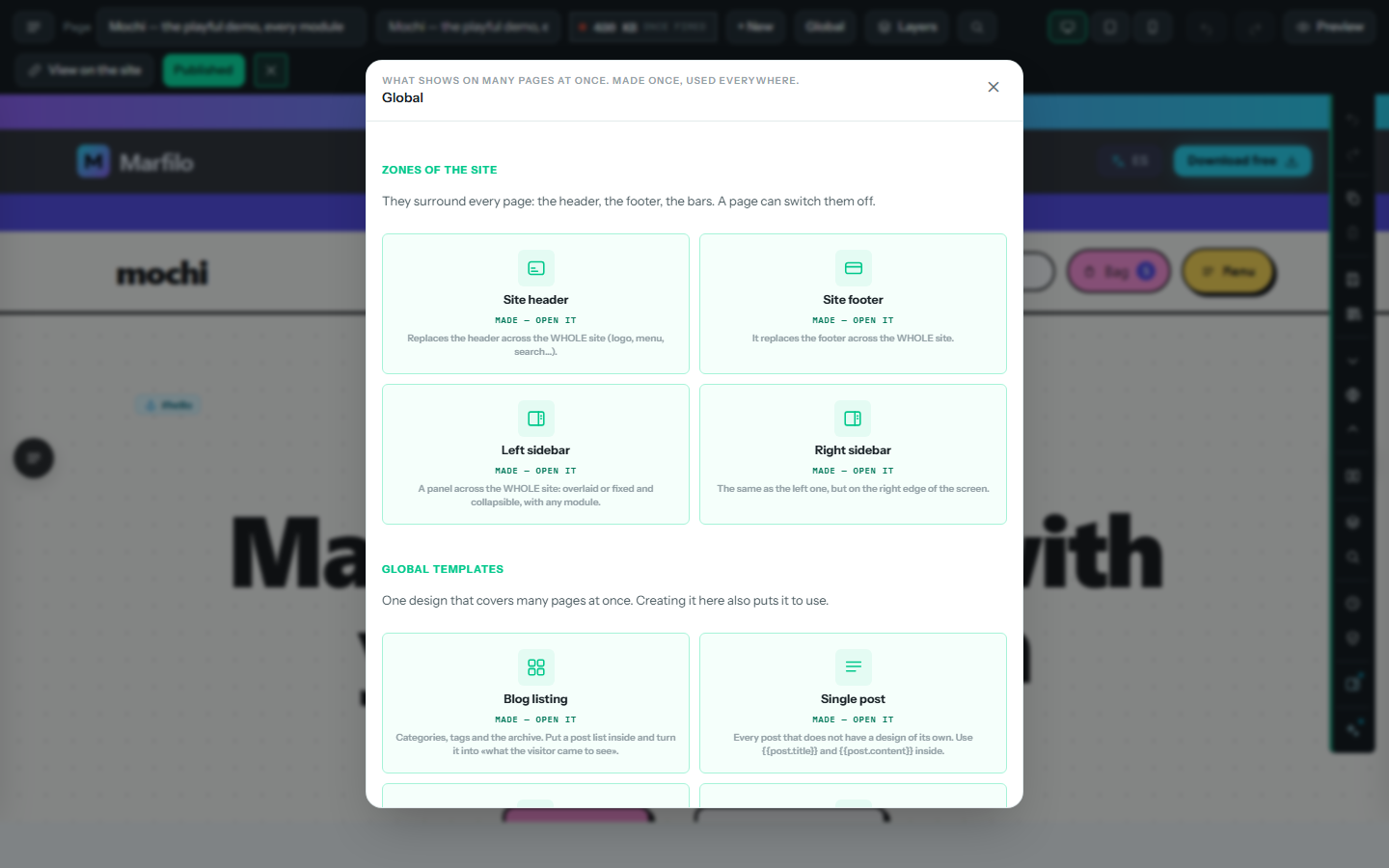
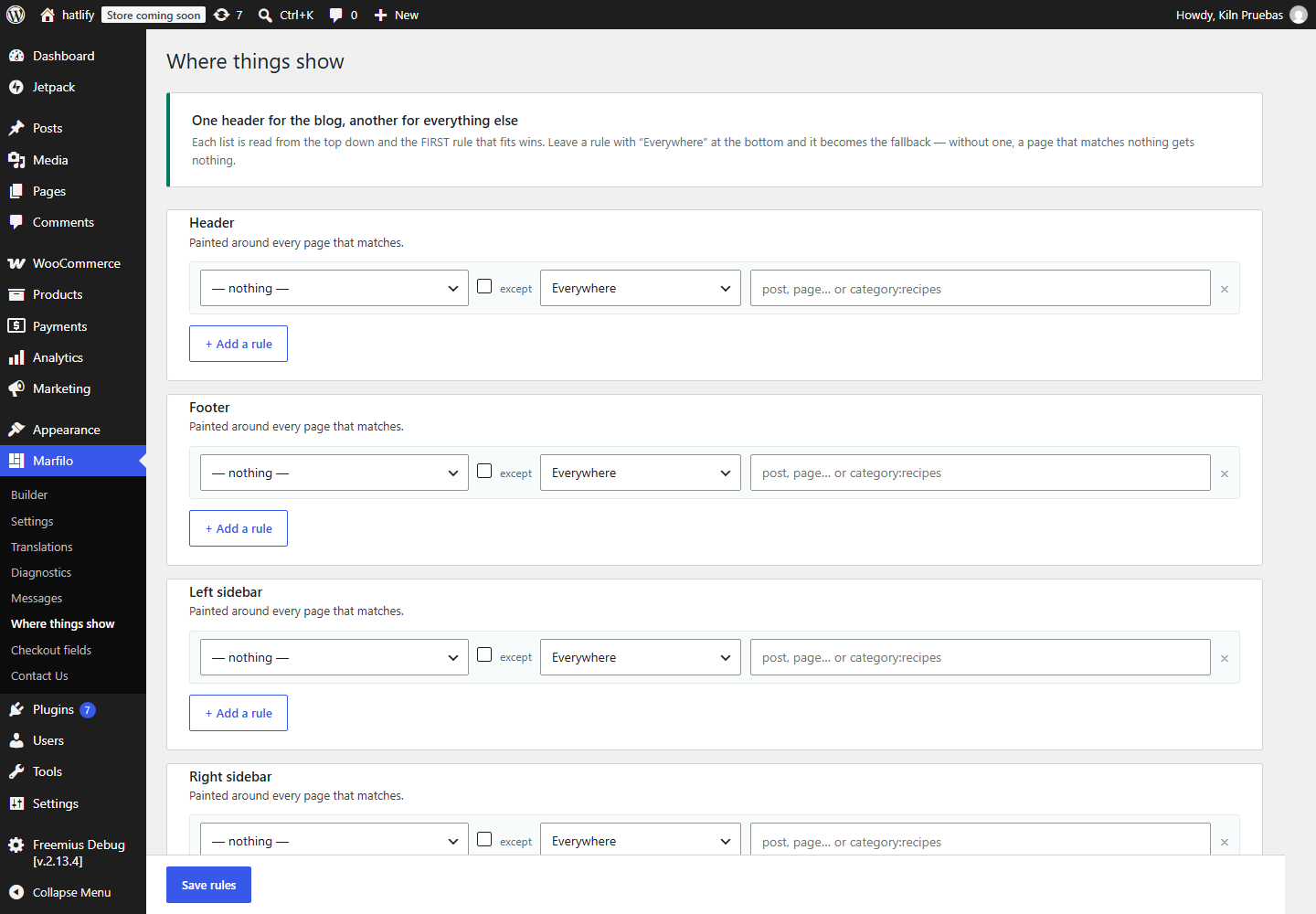
Global, in the top bar, gathers what shows on many pages at once. Publishing one of them changes it across the whole site.
Dynamic content
Tags the site fills in
Write a tag in any text field and the site fills it in when the page is served. Add | and a fallback for when there is nothing.
{{post.title}}
{{post.excerpt|No summary yet}}
{{author.name}} · {{post.date}}
{{field.price}}
© {{date.year}} {{site.name}}
The page or post{{post.title}} {{post.excerpt}} {{post.content}} {{post.url}} {{post.thumbnail}} {{post.date}}
Custom fields (ACF too){{field.anything}}
Who wrote it{{author.name}} {{author.avatar}} {{author.bio}}
The site{{site.name}} {{site.tagline}} {{site.url}} {{date.year}}
WooCommerce{{product.price}} {{product.stock}} {{product.sku}} {{product.rating}}
Archives{{archive.title}} {{term.name}} {{term.url}}
// 06 — Templates and themes
Start from something beautiful
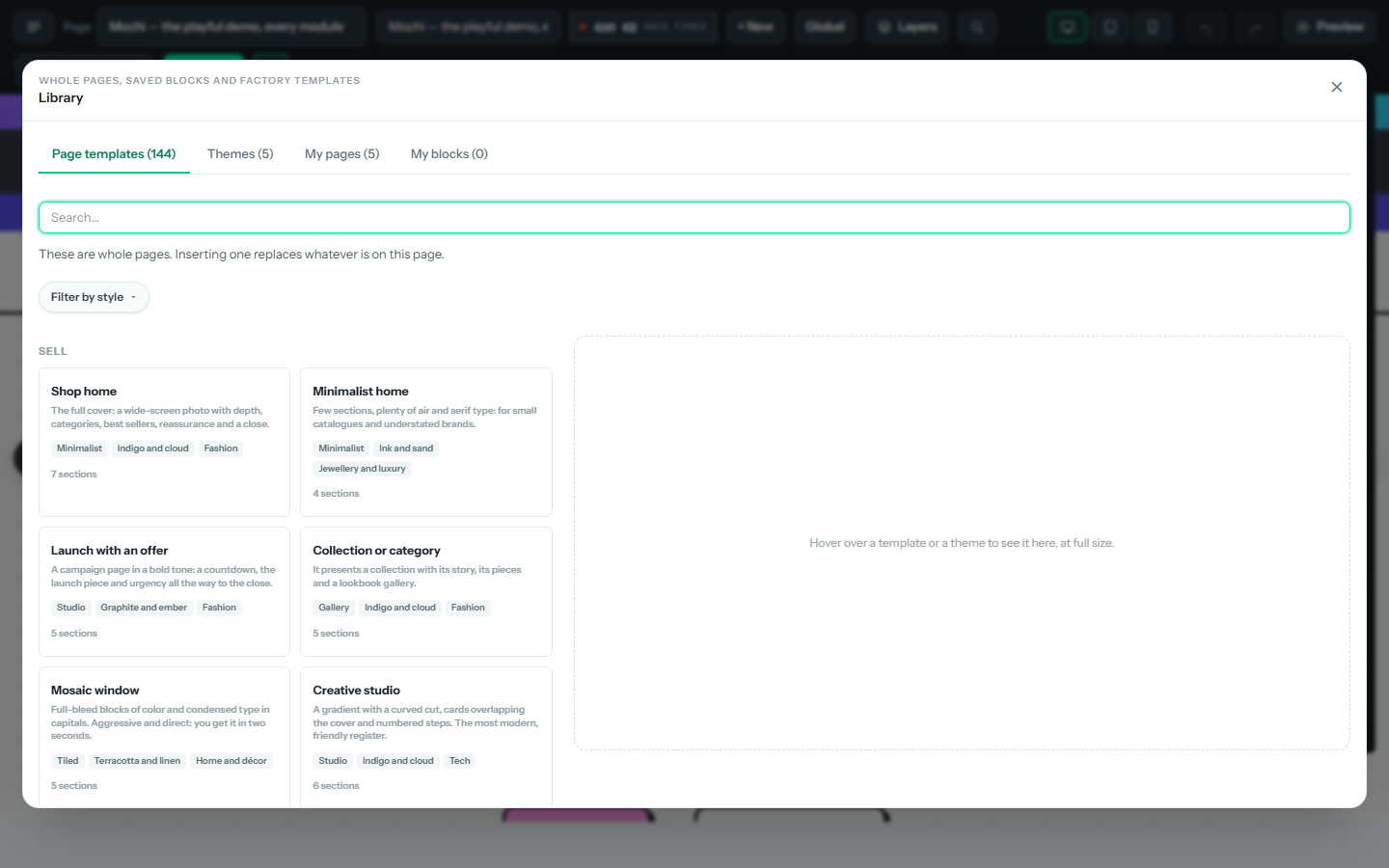
The Library holds page templates, five complete themes, and everything you save yourself.
// 07 — Floating layer and publishing
From draft to live, safely
Pop-ups and fixed buttons live in their own layer, and every publish keeps the previous version.
Floating elements
Things that float over the page
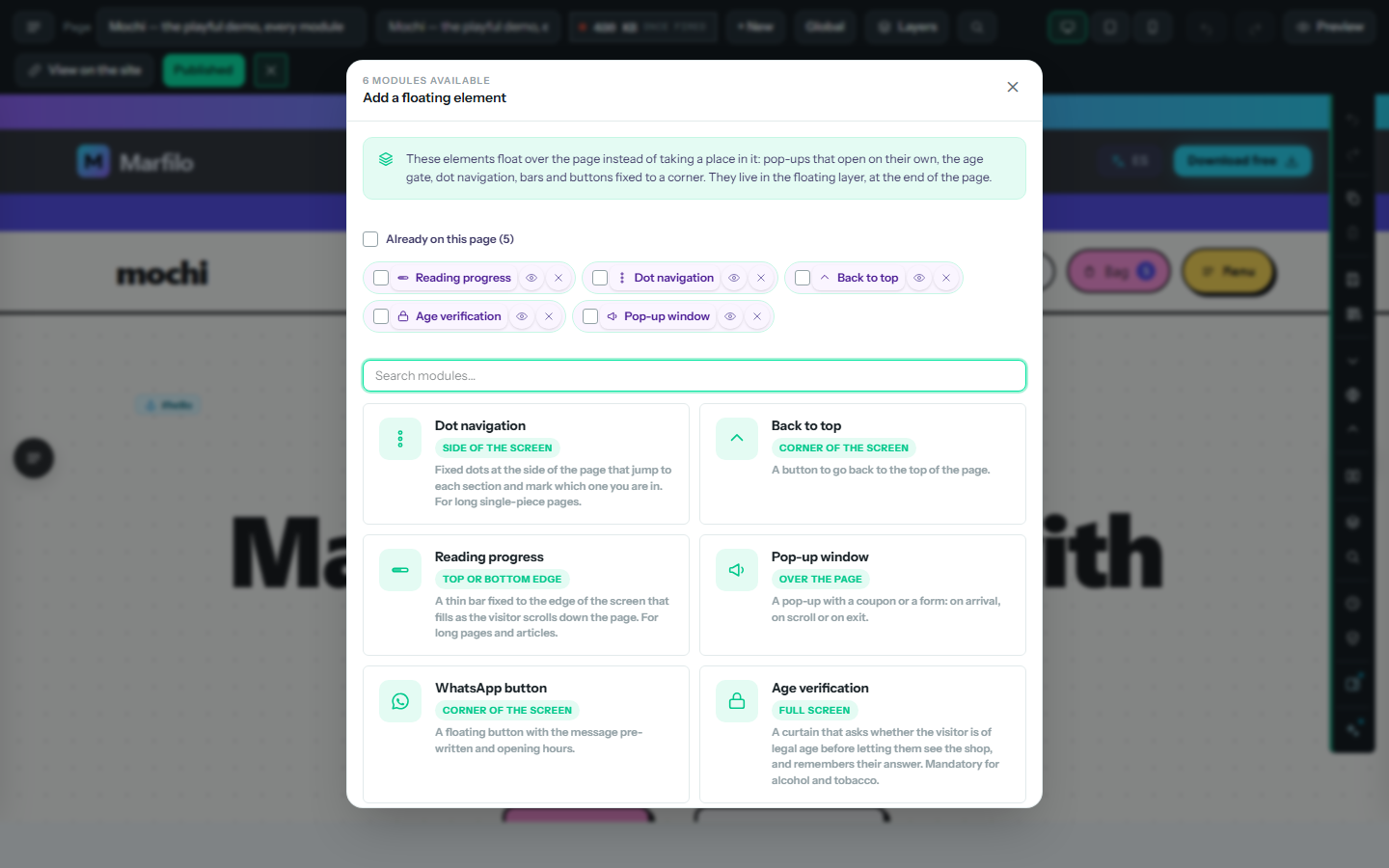
Pop-ups, the age gate, dot navigation, reading progress, back to top and WhatsApp buttons. Add them from the floating elements button; show, hide or delete several at once.
Publishing
The life of a change
Draft
Autosave
Every change is kept as a draft 15 seconds later.
Check
Preview
The unpublished draft, full size, on the real site.
Live
Publish changes
“Fired: 43 KB, no extra requests. It is live on the site.”
Undo
History of versions
The last 20 publishes, with names. Put any back on the canvas.
// 08 — Import and export
Move a whole site in one file
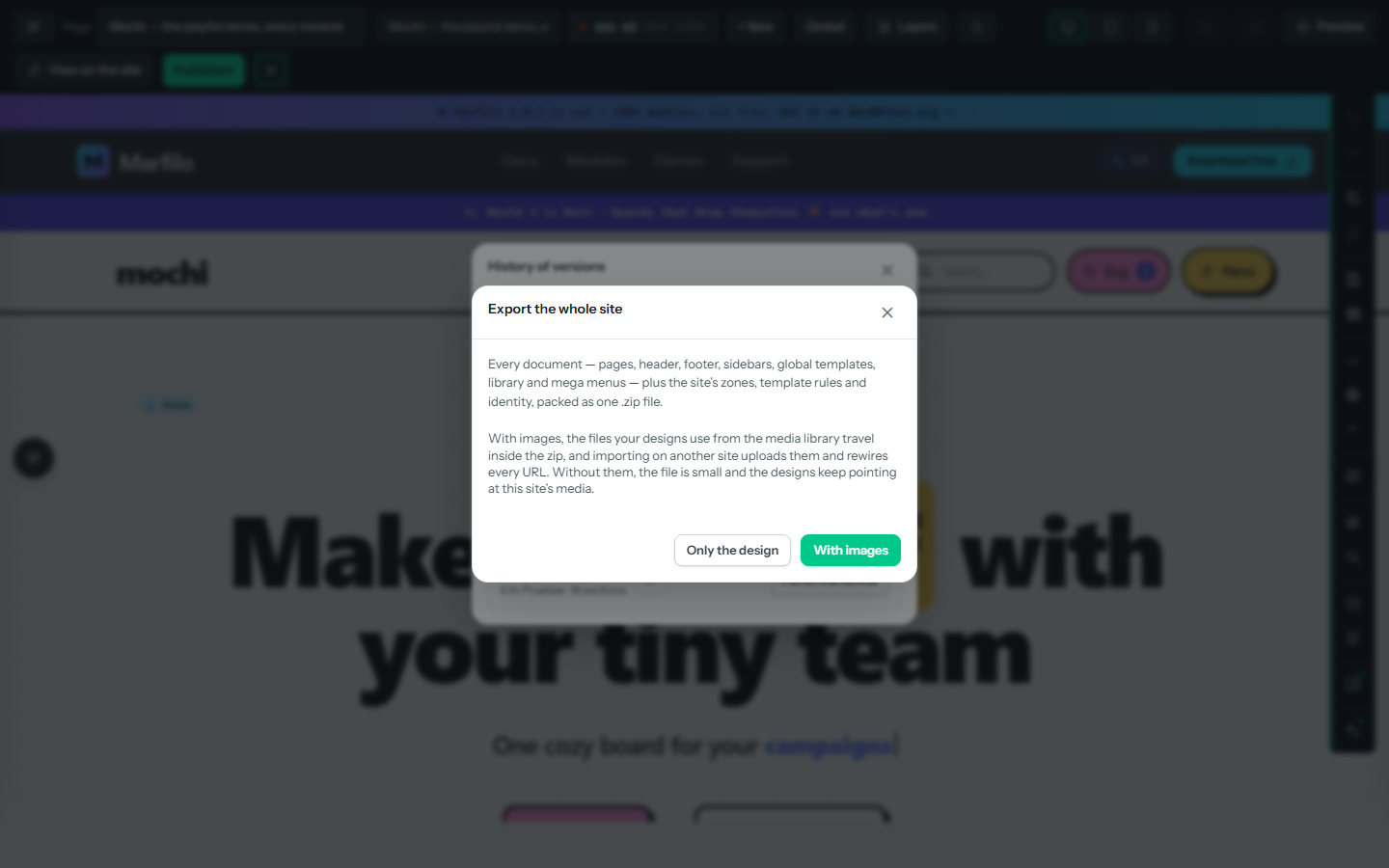
Every document, zone, rule and image travels in one .zip — and one Import button recognises what you give it.
Export this page
Only the design (.json) or a .zip with the images it uses; optionally with the site header and footer, which ask before replacing anything.
Export the whole site
Only the design, or with images.
Import
A template replaces the canvas; a theme or a site is published.
Nothing half-done
Whatever could not come in is listed, grouped by reason.
// 09 — Power tools
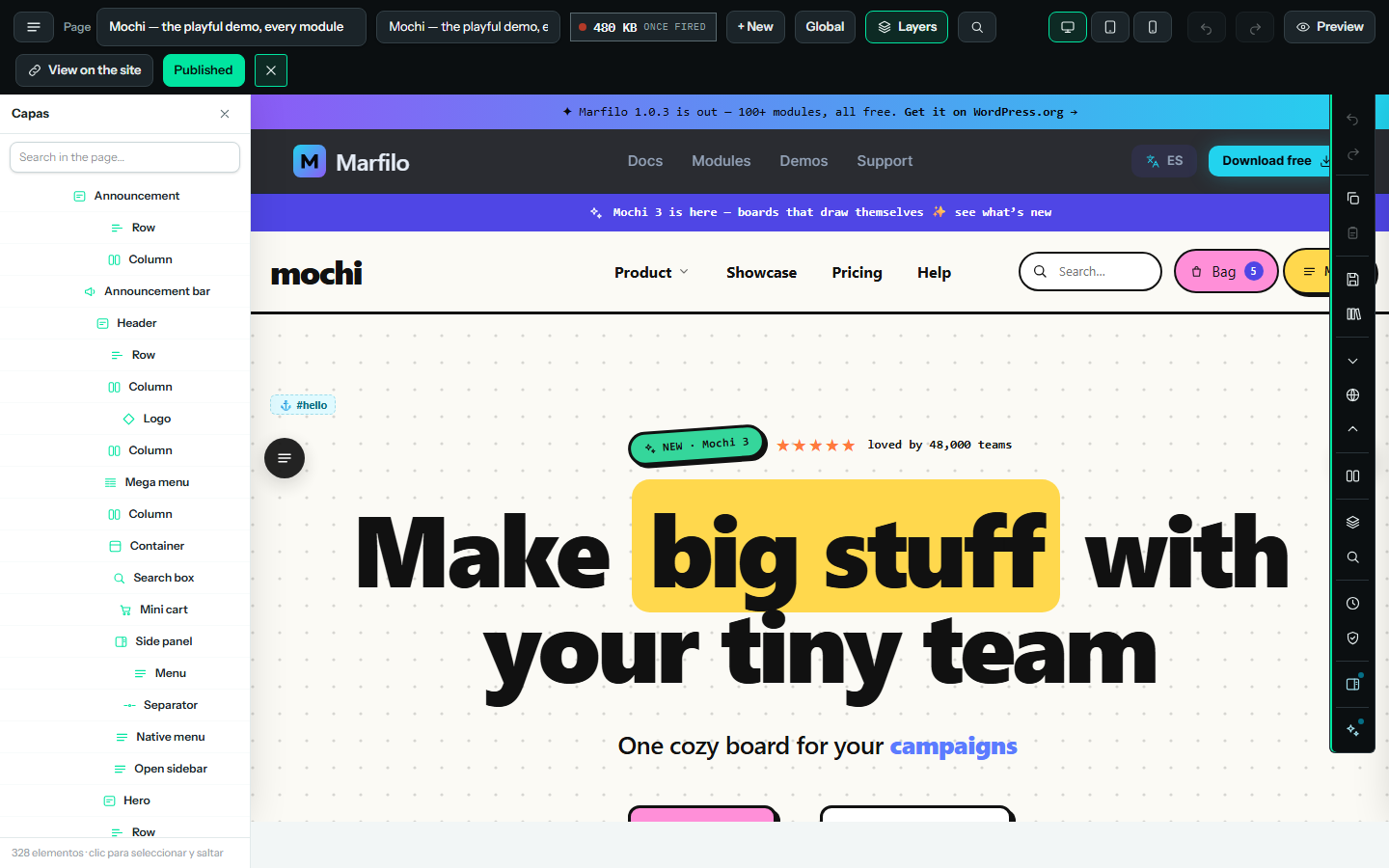
See the whole tree
Layers, find and replace, an accessibility check and the Marfilo screens in wp-admin.
Checks
Catch problems early
// 10 — Questions
Asked before you
The short answers. For anything else, the support forum.
Do I need to know how to code?
Does it work with my theme?
What happens to my pages if I remove the plugin?
Why is “View on the site” greyed out?
Is everything really free?
// NEXT
Every module, explained
All 107 modules, grouped by category, with what each one does.